
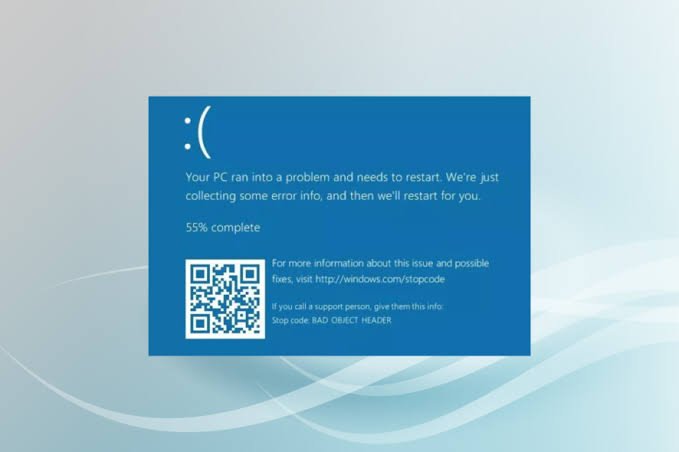
You might encounter the Blue Screen of Death (BSOD) unexpectedly on your Windows 11 computer. This could happen while you are surfing the internet, gaming, updating the Windows installation, or even powering on the computer. There are many BSOD errors, but one of them is BAD_OBJECT_HEADER.
As the name suggests, this error is linked to an issue in the Windows operating system itself. In accordance with the specific situation, you may face repeated crashes, unanticipated reboots, or problems starting up Windows. Should the same error keep coming up, determining the correct stop code and any changes made recently can help pick out the correct solution.
Fortunately for you, there are many ways to diagnose the problem using the built-in Windows tools. You would need to look into device drivers, system files, memory testing, or perhaps a hardware issue. However, there is no guaranteed solution for everyone since the cause might be different.
In this guide, you will learn about the BAD_OBJECT_HEADER blue screen of death, its causes in Windows 11, and ways to fix the issue. You will also be able to find out how to secure your personal files when the error prevents access to them.
What Is BAD_OBJECT_HEADER BSOD in Windows 11?
“BAD_OBJECT_HEADER” is a Windows stop code with the Bug Check Code 0x00000189. The Microsoft technical documentation states that the stop code means that there is a corruption of the Windows object header. The header has information about the object that is used by Windows for managing an internal system object. If Windows encounters such corruption, it may decide to halt the computer system to prevent it from running in the dangerous mode.
The technical details can be found on the Microsoft site. Windows uses internal objects for managing system resources. Various issues with drivers, memory, or other components of the system can be related to corruption, but this stop code itself does not provide the initial reason.
It is important that we do not confuse the BAD_OBJECT_HEADER with the BAD_POOL_HEADER, which is a completely different bug check code. The BAD_POOL_HEADER is correlated with stop code 0x00000019 while BAD_OBJECT_HEADER with stop code 0x00000189.
When you encounter this error message on your computer, be sure to capture the whole stop code, including all details provided by the error message on your screen.
Common Causes of BAD_OBJECT_HEADER BSOD
Although the error highlights one type of system corruption, it does not indicate the component responsible for it. The following problems should be investigated.
1. Faulty or Incompatible Device Drivers
Device drivers are useful for Windows to communicate with hardware components like video cards, disk drives, network cards, and USB devices.
An old, corrupt, or incompatible driver with Windows will lead to instability in your computer system. This can happen due to the updating of drivers, installing new hardware, or even an upgrade to Windows that makes your driver incompatible.
If you notice that the BSOD came up just after an update to a driver, it is a good place to start looking at this issue.
2. Faulty RAM or Memory Instability
Windows uses Random Access Memory (RAM) to keep temporary data needed by the operating system and its applications when in use. When there is faulty memory or unstable memory, the system data could become corrupted.
Some of the symptoms associated with memory problems include crashes and unintended restarts, among others. There is a utility called Windows Memory Diagnostic that can help detect some of the memory problems, but further tests might be required.
3. Corrupted Windows System Files
Windows uses system files and services to function properly. However, something such as a disruption in an update, improper shut-down procedure, storage issue, or software conflict may cause the damage to system files.
Even though fixing damaged system files may solve some issues of Windows, it will not help to fix BAD_OBJECT_HEADER error if the reason behind the error is a problematic driver or hardware.
4. Recent Windows Updates
The Windows Update can improve security and fix some bugs, among other things. It is possible that the update might cause incompatibility with the existing drivers or applications.
In case you experienced the error right after the installation of the update, verify that the issue occurred simultaneously. In such a case, you should be able to fix the error by uninstalling the update.
5. Incompatible Applications or Security Software
Certain applications install services or drivers which are very dependent on the operating system. Some security, system, and hardware management applications have been known to sometimes conflict with other programs.
When there is a BSOD after a new program was installed or updated, then it might be worth uninstalling it to test whether this solves the issue.
6. Storage Device Problems
For proper operation, the system files and storage devices must be available to Windows. File system corruption, storage controller problems, and even drive failure could result in different system problems.
Also look for other symptoms such as lost files, frequent disk errors, very slow file access, or the failure of Windows to boot at all. These do not mean that the drive is the problem, but indicate that you need to investigate further.
7. Overheating or Other Hardware Issues
Excess heat, faulty hardware configuration, or a malfunctioning component could be what is causing your computer to be unstable. If the BSOD occurs while performing strenuous tasks like gaming and video editing, consider checking the state of the cooling system and the hardware.
These reasons are just assumptions and not definite conclusions. Here are some troubleshooting procedures that you could use to find out what is wrong.
How to Fix BAD_OBJECT_HEADER BSOD in Windows 11
Follow these steps in order. Start with basic checks and move to more advanced options if the error continues.
Fix 1: Restart the Computer and Record the Stop Code
A single occurrence of the blue screen is due to some transient issue. A reboot will help ascertain whether the issue is recurring.
- Let Windows gather the necessary diagnostic data if there is a progress bar present.
- Reboot the system.
- Take note of the full stop code and any other error messages.
- Check whether Windows loads to the desktop.
- Note whether the crash occurs during startup or when launching a certain program.
If the system runs fine, watch for any future crashes. If the error keeps occurring, then you can proceed to the next step.
Fix 2: Disconnect Recently Added Hardware
However, newly added hardware may cause some driver problems.
- Shut off the computer.
- Unplug unnecessary external hardware, such as USB hubs, printers, external drives, and other accessories.
- Keep necessary peripheral hardware plugged in.
- Turn on the computer.
- See if the BSOD occurs again.
- If the computer works fine, plug in the hardware one by one to see if any specific hardware causes this problem.
Do not unplug internal hardware when the computer is on. If there are any internal hardware problems, consult a professional.
Fix 3: Start Windows 11 in Safe Mode
In Safe Mode, Windows will load with an incomplete list of drivers and services. This tool can help determine whether a third-party application or driver is causing the system crash.
If Windows starts in a normal way, then you will have access to recovery tools via the Settings menu. In case Windows doesn’t start normally, use the Windows Recovery Environment (WinRE).
- For accessing Safe Mode in case Windows doesn’t start normally:
- Let Windows load its recovery environment after several failed attempts to boot.
- If the recovery screen doesn’t show up, follow the guidelines provided by Microsoft on how to access Windows Recovery Environment on your device.
- Choose Troubleshoot > Advanced options > Startup Settings > Restart.
- Once your computer reboots, choose Safe Mode.
- The options available to you might vary depending on the configuration of your device and Windows.
If Windows runs normally in Safe Mode but crashes at the startup, then there is a possibility that a newly installed driver, application or service is causing it.
Fix 4: Update or Roll Back Drivers
A driver issue should be looked into if the error occurred after the installation of a driver update or new hardware.
- Right-click the Start menu.
- Launch Device Manager.
- Navigate through various categories like Display Adapters, Network Adapters, and Storage Controllers.
- Find the devices that have a warning sign.
- Right-click the device and click Properties.
- Select the Driver tab.
- If the issue arose due to the update, click Roll Back Driver if that is an option.
- If the rollback does not work, search for the right driver on the official site of the computer manufacturer.
- Use the official support website of the graphics card or other specific hardware if required.
Do not download any drivers from unknown sources because an incompatible driver may lead to more issues in the system.
Check if the BSOD comes back after the computer restarts.
Fix 5: Uninstall a Recent Windows Update
In case the error occurred right after the installation of a Windows update, uninstalling the latest Windows update may help you identify if it created any compatibility issue.
In case the Windows loads normally:
- Go to Settings.
- Click on Windows Update.
- Then click on Update history.
- Choose Uninstall updates.
- Uninstall the latest Windows update.
However, if the Windows doesn’t load, open Windows Recovery Environment and then choose:
Troubleshoot > Advanced options > Uninstall Updates
Depending on the choice of recovery methods available, you might be able to uninstall the most recent quality or feature update.
The process can help only if the timing indicates that there is a problem with the update. Otherwise, look into other causes of the problem.
Fix 6: Run System File Checker
System File Checker (SFC) is an internal Windows utility that scans the system files and tries to fix any corrupted files.
To use it:
- Boot Windows normally or in Safe Mode.
- Search for Command Prompt.
- Click on “Run as administrator”.
- Type in the following command:
sfc /scannow
- Hit Enter.
- Wait for the scanning process to complete.
If Windows says that it fixed the corrupted files, reboot your PC and see if the problem persists.
If SFC does not fix some of the files, move on to the next step. Keep in mind that fixing the system files will not help if the corruption is caused by a bad driver or hardware failure.
Fix 7: Run DISM to Repair the Windows Image
Deployment Image Servicing and Management (DISM) is another built-in Windows utility. It can help repair the Windows component store used for system maintenance.
- Open Command Prompt as an administrator and run:
DISM /Online /Cleanup-Image /RestoreHealth
- Press Enter and wait for the process to finish. It may take several minutes, and an internet connection may be needed to obtain repair content.
- After DISM completes, run:
sfc /scannow
- Restart the computer when the scans have finished.
These commands are intended for a running Windows installation. If Windows cannot start, offline repair procedures may be needed.
Fix 8: Test the Computer’s RAM
In case the BSOD persists with no obvious cause, it may be necessary to test the computer’s memory.
- Windows offers an in-built memory test utility.
- Press Windows + R.
- Type mdsched.exe.
- Press Enter.
- Choose Restart now and check for problems in case all your work is saved and you are ready to restart.
- Let the test run to completion.
- Look at the results when Windows comes back up.
If the test finds any memory problems, there might be a need to test or replace the RAM.
However, even a clean test doesn’t mean that all memory problems have been ruled out.
Fix 9: Check the Storage Drive
Storage issues can lead to system instability. However, if the drive looks fine and there are no doubts about its physical condition, one can try a simple file system check.
- Launch Command Prompt as an administrator.
- Type the following command, substituting C: for another drive letter if required:
chkdsk C: /scan
- Press Enter.
- Carefully read the report and act accordingly.
However, in case the hard drive produces strange noises or seems to have physical issues, do not perform multiple checks and repair operations. They will only stress out the failing hardware.
In case some files are missing, it is more important to ensure that your data is safe than to spend time on repairs.
Fix 10: Uninstall Recently Installed Applications
If the BSOD was triggered following the installation of a new program, you can try uninstalling it in order to diagnose the problem.
- Go to Settings.
- Choose Apps > Installed apps.
- Locate the program that was installed shortly before the errors appeared.
- Open the menu of the program and choose Uninstall.
- Proceed as instructed.
- Restart your PC and see if the error occurs again.
If Windows does not boot normally, you might have to use Safe Mode or any other appropriate recovery method.
Take care when uninstalling any security applications or hardware management utilities. Make sure to follow the instructions provided by the software vendor.
How to Recover Files If BAD_OBJECT_HEADER Causes Data Inaccessibility
It should be understood that a blue screen will not cause the deletion of personal files. Nevertheless, repeated crashes, file-system corruption, issues with the storage device itself, or failed repair attempts can lead to files becoming inaccessible.
In case you cannot find your important files after the crash, take the following precautions:
- Avoid any unnecessary activity on the drive in question.
- Check your backups and cloud storage.
- Do not format the drive just because Windows prompts you to do so.
- Avoid the installation of Windows on the drive in question before considering recovery.
- If the drive is physically damaged or producing unusual noises, stop using it.
Consider windows data recovery software from Stellar. Stellar Data Recovery for Windows is meant to help users recover deleted or inaccessible files in cases of data loss where this software is applicable.
Depending on the situation of data loss and the condition of the storage device, data recovery software can help find documents, photos, videos, and other files.
However, recovery is not guaranteed. The outcome depends on factors such as the file system, the condition of the drive, and whether the lost data has been overwritten. If a drive has physical damage, ordinary recovery software may not be the safest approach.
If the files are particularly important, consider professional data recovery before making major changes to the affected storage device.
Final Thoughts
BAD_OBJECT_HEADER BSOD error in Windows 11 points to corruption of some internal object header in Windows, but it doesn’t necessarily mean that your computer is irreparably broken.
First, identify the stop code and understand when it happens. Next, analyze recent changes in drivers or software, examine Windows system files, test your RAM and check your storage for health issues.
In case of a blue screen with lost files or unaccessible drives, take care of your data before doing anything else. Don’t format your drive or reinstall Windows until you consider all your options.
With thorough troubleshooting, right drivers, regular backups and timely hardware checkups, you can increase stability of Windows and avoid such issues in the future.