
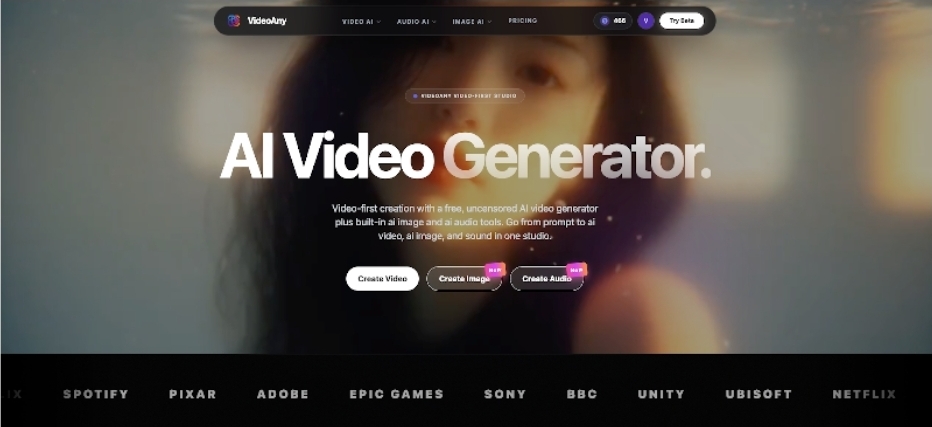
Want the fastest path from a still image to a shareable clip? Start withImage To Video . If you prefer generating a scene from text or mixing multiple assets, use theAI Video Generator.
Step 1: Choose an image that “wants to move”
Pick a still with a clear subject and obvious motion cues: hair, fabric, smoke, water, light rays, or depth-of-field background. Busy images with many tiny objects often produce chaotic motion, especially for short clips.
Step 2: Write prompts like a director, not a poet
Instead of vague adjectives (“cool,” “cinematic”), specify:
- – Camera: slow push-in, gentle pan, stable handheld
- – Subject motion: blink, breathing, subtle smile
- – Environment: soft wind, floating dust, bokeh shimmer
- – Constraints: subtle, stable, no jitter
These instructions reduce randomness and help you iterate.
Step 3: Iterate twice, then move to editing
The fastest creators don’t chase perfection in one generation. Do two rounds:
1. Validate motion direction (what moves, how much).
2. Adjust only one variable (camera OR subject OR atmosphere).
Treat outputs as “shot blocks.” Combine 2–4 short blocks in an editor and you’ll get a more controlled result than over-tuning a single generation.
A few prompt examples you can copy
- – “Slow push-in, subject blinks naturally, soft wind moves hair, stable, subtle, no jitter.”
- – “Gentle pan left, fabric sways slightly, warm sunlight flicker, keep identity consistent, no warping.”
- – “Locked camera, breathing motion only, background bokeh shimmer, cinematic but minimal motion.”
Common mistakes (and quick fixes)
- – Too much motion: remove “dynamic,” add “subtle,” “stable,” “gentle.”
- – Too many instructions: keep one camera move and one subject action.
- – Messy inputs: crop to the subject and simplify the background if possible.
Quick checklist before generating
- – One clear subject
- – One camera move
- – One subject motion
- – One stability constraint (“no jitter”)
A 10-minute workflow for reliable results
1. Crop your image so the subject fills the frame and distractions are minimized.
2. Generate three variants with the same prompt but different camera moves (locked / slow push-in / gentle pan).
3. Pick the cleanest motion and only then tweak one detail: either reduce intensity, add a single atmosphere element, or tighten constraints.
4. Export and cut the best 1–2 seconds into your intro, hook, or transition.
This approach is fast because it produces options you can choose from instead of gambling on one “perfect” generation.
When to use Image To Video vs. the broader studio
Use Image To Video when you already have a strong still (a product hero, a portrait, a title card) and you want a clean motion loop quickly. Switch to the AI Video Generator when you need multiple scenes, text-driven ideation, or a more complete project workflow where you manage several shot blocks, versions, and exports in one place.
One last tip: export and reuse. A good 1–2 second loop can become an intro, a transition, and a thumbnail motion layer across many videos, saving you hours over a month.