

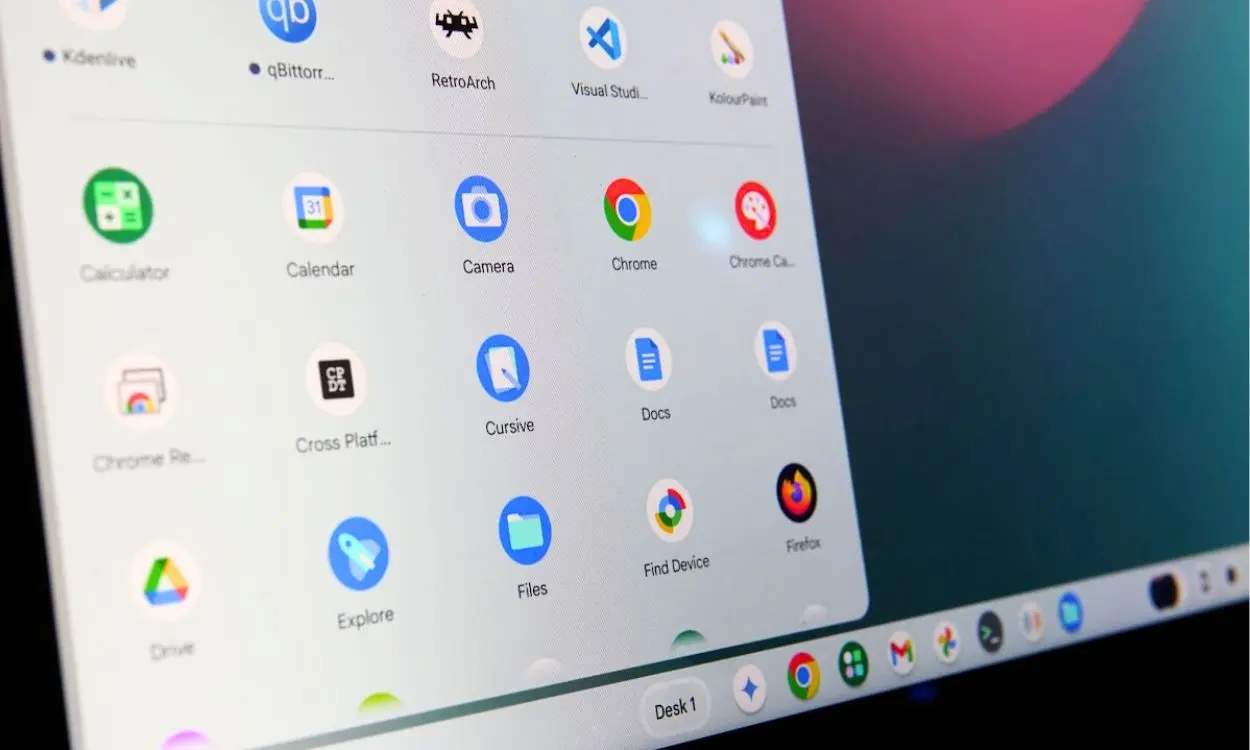
Here’s something most people learn the hard way: downloading YouTube videos on a Chromebook is not the same as doing it on Windows or Mac.
ChromeOS doesn’t allow traditional desktop software installs. You can’t just download a .exe file and run it. Everything works inside the browser.
At the same time, more students, remote workers, and travelers want offline access to videos. Many need to watch educational content without depending on Wi‑Fi.
This guide explains how to choose a lightweight, Chrome OS-compatible YouTube downloader in 2026 without slowing down your Chromebook or installing unnecessary software.
What is the best YouTube downloader for Chromebook?
The best YouTube downloader for Chromebook is a lightweight, browser-based tool or Chrome extension that runs directly inside ChromeOS. It should support HD video downloads, MP4 and MP3 formats, fast and secure processing, and smooth performance without needing any heavy software installation. Tools like Tubly Downloader meet all these requirements.
Why Chromebook Users Need a Different Type of YouTube Downloader
Chromebooks are built differently. What works on Windows or Mac simply doesn’t apply here.
ChromeOS does not support traditional Windows or Mac executables. You can’t install .exe or .dmg files. That removes most desktop YouTube downloaders from the picture right away.
Many Chromebook models also come with limited local storage. Large software installations eat up space quickly. That’s not ideal for students or budget users.
ChromeOS runs in a browser-first ecosystem. Most tasks happen inside Google Chrome. So the right YouTube downloader for Chromebook should also live inside the browser.
That is why lightweight, extension-based tools make sense. They install directly in Chrome, require no system changes, and work smoothly within the ChromeOS environment.
What Makes a YouTube Downloader Chromebook-Friendly?
For a YouTube downloader to work well on a Chromebook, it must align with Chrome OS’s strengths and limitations. Here is what to look for:
1. Browser-Based or Chrome Extension Support
Chromebooks cannot run .exe or .dmg files. A Chromebook-friendly downloader works directly inside Google Chrome. A browser extension allows one-click downloads right from the YouTube page, making it fast and convenient for frequent use.
2. Lightweight Performance
Chromebooks often have limited RAM. A good downloader uses minimal system resources, loads quickly, and doesn’t slow down your device. Lightweight tools ensure smooth performance even when multiple tabs are open.
3. Support for HD and 4K Downloads
Many Chromebooks now support high-resolution screens. A downloader should preserve original video quality. Look for tools that allow HD downloads, including 1080p or 4K, so your saved videos look clear offline.
4. Multiple Format Options (MP4, MP3)
Sometimes you only need audio. Chromebook-friendly tools should offer multiple formats. MP4 works for video playback, while MP3 or audio-only options are useful for lectures, podcasts, and all other audio content.
5. YouTube Shorts Download
YouTube Shorts are vertical, quick videos that are increasingly popular. A Chromebook downloader should support these formats too. This ensures that you can save both standard videos and Shorts for offline viewing without switching tools.
6. No Complex Installation Process
Installing software should be simple. Chromebook-friendly downloaders require no system modifications or developer mode. The tool should work immediately after installation, letting you download videos without extra setup.
7. Clean, Ad-Free Interface
A cluttered interface slows you down. A clean, ad-free layout improves usability, especially for students or anyone downloading multiple videos. It also reduces the risk of accidental clicks on misleading ads.
8. Secure and Reliable Downloads
Safety matters. Choose a downloader that uses HTTPS encryption, avoids suspicious redirects, and updates regularly to stay compatible with YouTube changes. Reliable tools prevent broken downloads and keep your files safe.
This combination of browser support, lightweight design, multiple formats, Shorts compatibility, and secure downloads ensures Chromebook users can save both standard videos and Shorts efficiently.
Types of YouTube Downloaders That Work on Chromebook
Chromebook users have fewer options than Windows or Mac users. That is not a bad thing. It just means you need to choose the right type of tool.
Here are the main categories that work on ChromeOS.
1. Chrome Extensions
Chrome extensions install directly inside Google Chrome.
They add a download button on the YouTube page itself, so you don’t have to copy and paste links. This makes them ideal for quick and frequent downloads.
Extensions are usually lightweight. They match the browser-first design of ChromeOS, which makes them a practical choice for students and regular users.
2. Web-Based Downloaders
Web-based tools run entirely in the browser.
You paste the YouTube URL, choose your format, and download the file. No installation required.
These are useful for occasional downloads. However, speed and reliability may depend on the website’s server performance.
3. Android App Alternatives (If Supported)
Some Chromebooks support Android apps through Google Play.
In that case, Android-based video download apps may work. Performance can vary depending on the Chromebook model, storage space, and system configuration.
This option is not universal, so always check whether your device supports Android apps before choosing this route.
Common Mistakes Chromebook Users Make
Chromebook users often run into issues because they treat ChromeOS like Windows. That usually leads to frustration. Common mistakes include:
- Trying to install Windows-based software – ChromeOS does not support .exe or traditional desktop installers.
- Ignoring format compatibility – Always check that MP4 is available for video and MP3 for lectures, podcasts, and all other audio content.
- Choosing tools that overload system resources – Heavy apps can slow down ChromeOS, especially on entry-level models.
- Not checking Chrome Web Store reviews – Reading ratings and feedback helps identify reliable extensions and ensures the tool is regularly updated.
How to Choose the Best Lightweight YouTube Downloader for ChromeOS
Choosing the right downloader is easier when you follow a simple checklist.
Step 1: Confirm ChromeOS compatibility
Make sure the tool works as a Chrome extension or fully browser-based solution. Avoid anything requiring desktop installation.
Step 2: Check supported video resolutions
Look for HD options such as 720p or 1080p. This ensures clear playback when you watch educational content offline.
Step 3: Verify available formats
Confirm support for MP4 video and MP3 audio. This gives flexibility for both video viewing and audio-only listening.
Step 4: Test download speed
Try a short video first. A reliable tool should process and download without long delays.
Step 5: Review interface simplicity
The layout should be clean and easy to understand. Too many ads or pop-ups reduce usability and can be a red flag.
Step 6: Compare performance with alternatives
Test one Chrome extension and one web-based tool. Compare speed, ease of use, and file quality before deciding.
Following this checklist helps Chromebook users choose a downloader that fits ChromeOS without slowing the device or complicating the process.
Who Benefits Most from a Chromebook YouTube Downloader?
- Students saving lectures: Students use videos offline while relying on well-supported school systems
- Researchers archiving tutorials: Keep reference material available locally.
- Remote workers downloading webinars: Access training without an internet connection.
- Travelers preparing offline content: Watch videos during flights or trips.
- Budget laptop users needing efficient tools: Low-resource downloaders work smoothly on entry-level Chromebooks.
Chromebook users need lightweight, browser-first solutions for downloading YouTube videos.
Focus on speed, compatibility, and a clean interface. Compare tools carefully before committing to one. Prioritize stability and secure downloads to ensure a smooth offline viewing experience.